
The short answer: a 23.8" monitor plus external keyboard and mouse
If you work on a laptop alone, the first upgrade is the trio: external monitor, keyboard and mouse. You gain screen space, and separating your eye line from your hands takes real load off your neck and shoulders. Budget from 20,000-30,000 yen for all three.
For the full picture of your setup, see the home office setup checklist.
Choosing a monitor: size, resolution, surface
Size and resolution pairs
The standard pick is 23.8" at full HD - balanced text size, workspace and price. If you spread documents side by side, step up to 27" at WQHD. Avoid 27" at full HD; the text looks coarse. Find 23.8" monitors Find 27" WQHD monitors
Pick a non-glare panel
At home you rarely get to choose where windows and lights sit, so a matte, non-glare panel is the safe default. Over long text sessions the difference in eye strain is obvious.
Height adjustment
Ideally the top edge of the screen sits at eye level. If the stand does not adjust, add a monitor riser or a monitor arm.
Check your ports: HDMI or USB-C
Before buying, check your laptop's video output. Recent laptops mostly use USB-C (DisplayPort Alt Mode) - with a USB-C monitor, one cable carries video and charges the laptop, which transforms your cabling. If you are short on ports, a USB-C hub fixes it. Find USB-C hubs
As cables multiply, the cable & storage guide will help.
Choosing a keyboard: silence and key feel
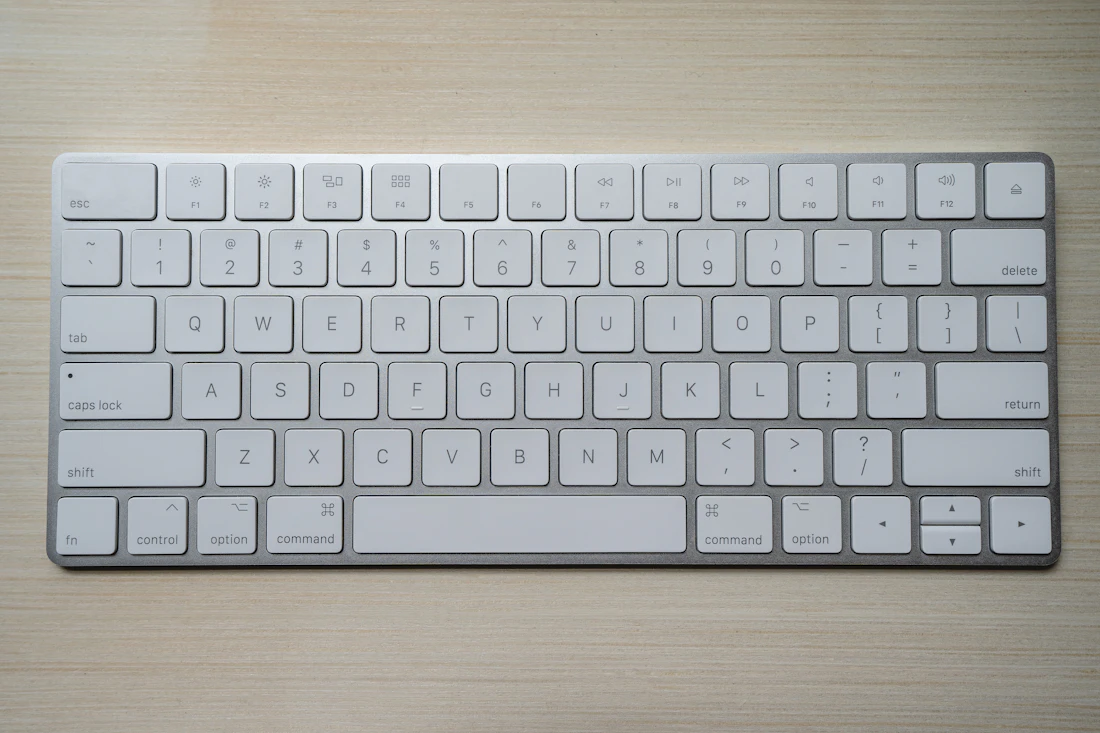
Typing noise during web meetings is the noise you never notice yourself. Make quiet operation the first requirement. Low-profile scissor-switch boards are quiet and suit most people; if you want a firmer feel, look at silent mechanical switches. Wireless (Bluetooth or 2.4 GHz) keeps the desk clear. Find quiet keyboards
Choosing a mouse: silence, shape, trackballs
A silent-click mouse is the home office default, too. If your wrist aches, try an ergonomic vertical mouse that keeps the hand upright, or a trackball that removes wrist movement entirely. Find silent mice Find trackballs
Related pages
PR — This page contains promotional content
Frequently asked questions
What monitor size should I get?
The standard is 23.8 inches at full HD. If you work with documents side by side, 27 inches at WQHD is more comfortable. Avoid 27 inches at full HD - text looks coarse.
Do I need two monitors?
Start with one. Your laptop screen works as a second display. Add a second external monitor only if your work genuinely needs two large screens at all times.
What is the benefit of USB-C monitors?
One cable carries the video signal and charges your laptop at the same time, drastically reducing cables. Check that your laptop supports DisplayPort Alt Mode.
Wired or wireless keyboard?
Wireless keeps your desk clear, and for home office work its downsides are negligible. Choose wired only if you need zero-latency input.
How long does a trackball take to get used to?
A few days to a week. Once adapted, you barely move your wrist, and it works well on narrow desks.
People say my typing is loud in meetings. What helps?
Switching to a quiet keyboard is the reliable fix. As a stopgap, stay muted except when speaking.